Find a family scene
Open the family category and choose a look that fits the story you want to tell.
LUMPIX / FAMILY LOOKS
The people who matter, in one frame. Choose a family look, add photos and make a new shared story.
THE STORY
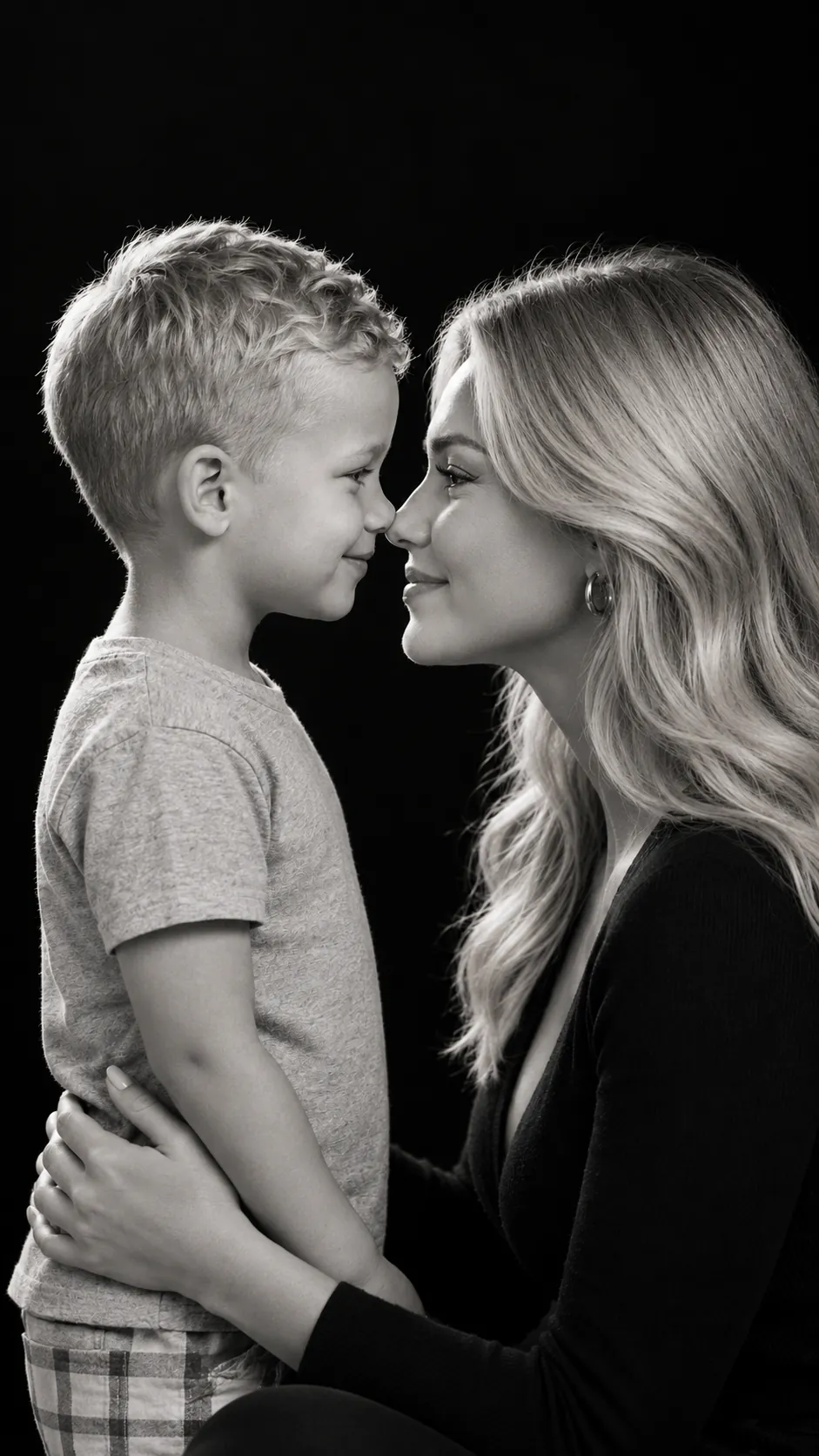
The Lumpix AI family portrait generator begins with a ready-made scene. The app has a dedicated family look category: choose a visual style, add source pictures as prompted and see your new shared frame. There is no need to train a personal avatar first.
THE LOOKBOOK
The family catalog includes different moods. These active looks show a playful flour scene and a portrait with soap bubbles.
Get it for iPhone

Creative look illustrations. Results depend on your source photos and the mode you choose.
02 / 03
Open the family category and choose a look that fits the story you want to tell.
Add pictures as prompted by your chosen look. Clear source images help the result.
Preview your family look and save it for your album or share it with loved ones.
A BETTER START
Start with the people and the mood you want in the frame. Different family looks show different scenes, so choose one that fits and follow its photo prompts.
Browse the previews and choose a family look whose cast and mood fit your idea.
Visible faces and good light help the result. Strong filters or poor source images can make it less predictable.
Preview the generated portrait, save it for your album or share it with people close to you.
03 / 03
Sometimes you want to keep the feeling of being together. Family looks offer another way to make that frame: for an album, a card or a message to people close to you. For a story with just the two of you, explore couple looks.
FAQ
No. Family looks are in the ready-made scene catalog and do not require personal avatar training.
That depends on the look you choose. Follow its prompts when adding pictures.
YOUR NEXT LOOK IS WAITING
Open Lumpix on iPhone, choose a family look and make a portrait you will want to keep.
Get it for iPhone